

TL;DR: To move a design from Figma to WordPress, you choose one of four routes: a converter plugin, an AI draft, a page-builder rebuild or a hand-built theme. Pick by who edits the site after launch: converters suit short-lived pages, a hand build suits years of client edits, and an AI draft needs a developer to finish it. Missing mobile frames, states or functionality notes have changed our quotes after work started, so run our free 16-check checklist on the file first.
You have an approved Figma file for a client's marketing site. The client wants to edit the site after launch, and your WordPress developer is fully booked, or you don't have one. The top guides we read for this post explain how to convert a file. This one starts from who will edit the result, what it needs to keep running, and why two developers quote the same file differently.
This guide is for the agency owner or lead designer who chooses the route and asks for quotes. We sell hand-built WordPress themes and use AI on client files ourselves. So we also say where a converter or a page builder is the better call.
The build-ready checklist, free to use: 16 checks to run on a Figma file before you ask anyone for a quote. They cover 4 things to send with the file, 6 gaps to close in it and 6 questions to ask any developer, converter or AI tool. All 16 are written out in the checklist section below.

What does converting Figma to WordPress involve?
Figma has no WordPress export. It exports PNG, JPG, SVG and PDF files, and its Dev Mode shows autogenerated code snippets for whatever you select (Figma Help Center). Neither gives you a theme. Some routes first build a Figma to HTML front end and then turn it into WordPress. Others go straight to blocks or a page builder.
Every route does the same three jobs. They differ in who, or what, does them:
- Frames become page templates: the home page, an inner page, the blog, the contact page and the 404.
- Components become editable sections: a hero, a card grid or a testimonial the client can change.
- Text and colour styles become CSS: the font sizes, colours and spacing the whole site shares.
How the file is built decides how much of this a tool can map. Auto Layout, named layers and shared text and colour styles give a converter, an AI assistant or a developer a structure to follow. Loose, unnamed shapes leave each of them guessing.
Assets leave Figma separately. Icons and logos go out as SVG, and photos at 2x as PNG or JPG. WebP isn't on Figma's export list, so WebP images are made at build time.
Prototype interactions don't come with the file either, because Figma exports only static formats. Kinsta notes that advanced interactions and animations do not carry over automatically with the Figma to WordPress Block plugin. Someone has to rebuild them.
Four ways to convert Figma to WordPress
Figma to WordPress plugins: UiChemy, Yotako and Figma to WordPress Block
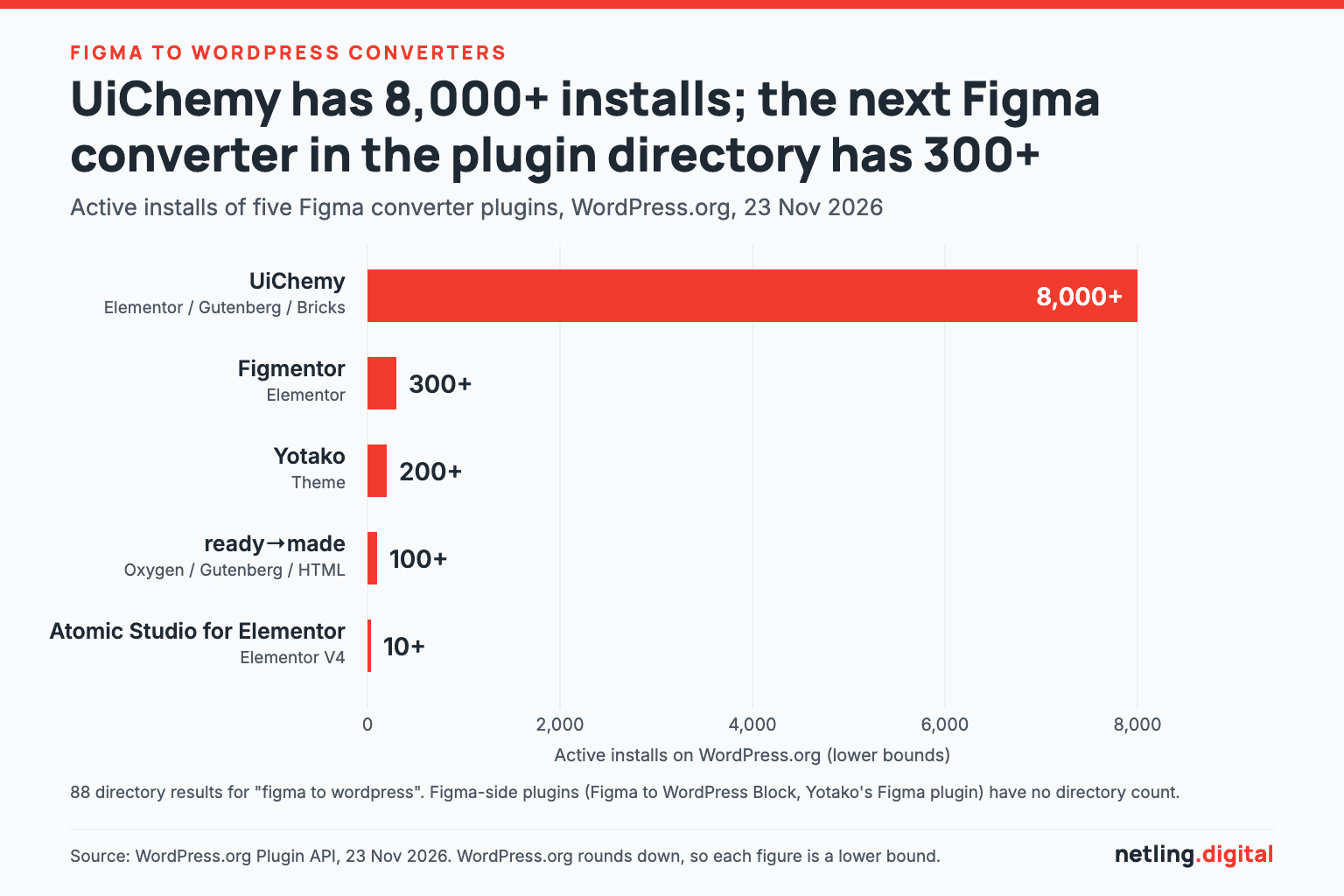
UiChemy converts Figma designs into Elementor, Gutenberg or Bricks pages. Its Gutenberg output works with Spectra, Kadence Blocks, GenerateBlocks or Nexter Blocks. That block plugin stays on the site, and the client edits sections through its controls. Of the five Figma converters we found in the WordPress.org directory in November 2026, UiChemy has the most active installs (8,000+). The other four are Figmentor, Yotako, ready→made (for Oxygen, Gutenberg or HTML) and Atomic Studio for Elementor.
Yotako's Figma to WordPress is a Figma plugin that turns selected frames into a whole theme, generated on Yotako's service. You can preview the theme free on a Yotako subdomain. Using it on your own install costs from $19.9 per design.
Figma to WordPress Block is a Figma Community plugin that gives you code to paste into the block editor. Its listing says it outputs WordPress's default blocks, Spectra or Kadence Blocks, and works best on a well-grouped design. Kinsta's guide pastes the code into Custom HTML blocks instead, and says styles and responsiveness may need manual adjustment and that there is no backend integration. Kinsta also calls plugin conversions "not 1:1" and says Yotako suits straightforward layouts. Older guides also name Fignel, which we could not find in the directory or online.
AI-drafted build
Figma's MCP server connects an AI coding agent to the file's variables, components and layout. The agent drafts code from them. The remote server runs at mcp.figma.com, so your design context passes to the AI tool you connect. What the client can edit afterwards depends on what a developer builds from the draft.
Page-builder rebuild
Someone rebuilds the design by hand in Elementor, Bricks, SeedProd or a similar builder. The client gets visual editing and can move sections around. The site needs the builder plugin for as long as it runs.
Hand-built theme
A developer codes the design into a theme with custom blocks. The client edits content inside fixed layouts. The site needs no page builder or third-party block plugin to show it.
What converted output does to speed, SEO and editing
Search engines and visitors meet the pages, whatever route produced them. So judge any route's result on a staging page with three checks:
- Headings and text: one H1, headings in order and alt text on content images. Text should stay live text, not part of an image or SVG.
- Speed: Google's Core Web Vitals call a page good at 2.5 seconds for Largest Contentful Paint, 200 ms for Interaction to Next Paint and 0.1 for Cumulative Layout Shift (web.dev). If the output needs a page builder or a converter's block plugin, check in DevTools which CSS and JavaScript files it loads on the staging page.
- Editing: open the editor as the client would. Custom HTML blocks are edited as code, and third-party blocks through their plugin's controls.
On a staging site behind a login, run Lighthouse from Chrome DevTools, which can audit pages that need authentication (Chrome for Developers). It reports LCP and CLS. INP is best measured from real visitors' interactions, so check it again after launch (web.dev on INP).
Editing is where we have seen a site fail. One page-builder site we were asked to fix had slow, heavy pages, and the client broke layouts while editing or couldn't find where content lived. We rebuilt it as a classic theme with custom blocks rather than patch it. That was a page builder, not a converter, but it shows that an editing set-up the client can't use can cost a full rebuild.
What a Figma to WordPress build costs and how long it takes
Only one vendor we found publishes price bands for this work. Seahawk's design-to-WordPress guide gives $499–699 for a basic single-page build in one to two weeks, and $999–2,999 for 10–15 pages in three to six weeks. The guide is written for PSD files, so treat it as a benchmark rather than a market rate.
Seahawk's WP Services catalogue prices by the hour instead: $99 per design hour for new builds and $79 per dev hour for rebuilds. WP Services is also Seahawk's, so its rates don't confirm the guide's bands.
Wbcom Designs publishes phases rather than a total. Design to tokens takes about a week, building and reviewing components four to ten, and browser, accessibility and speed checks one to two. That adds up to 6–13 weeks by our sum, longer than Seahawk's three to six weeks for 10–15 pages. Seahawk gives totals, not phases, so ask each builder which phases its timeline covers.
Converters cost far less up front: Yotako from $19.9 per design, while UiChemy prices its paid plans by volume with no figure on its listing. Figma's desktop MCP server needs a Dev or Full seat on a paid plan, and Figma lists a Dev seat from $12 a month.
Agencies that quote per unique page template, as we do, count the templates in your file. After that, what the file leaves undrawn or unspecified moves the quote, which the checklist below catches. If the site is growing into a web application, with logins, dashboards or custom data, what custom development costs is the better guide.
What a hand-built Figma to WordPress theme does with your file
Here is what a good hand build does with each part of your file, written as questions you can put to any developer. Our own Figma to WordPress builds are the worked example. Two developers do the work. A front-end developer codes the file into responsive HTML, CSS and JavaScript. A WordPress developer then builds it into a classic theme with custom Gutenberg blocks.
From Figma to Gutenberg blocks: what gets a block and what stays fixed
Our rule: a section the client edits or reuses becomes a custom block, and the header and footer stay in the theme templates. We rarely use block patterns.
Each custom block is registered with a block.json file, the canonical way to register blocks since WordPress 5.8 (WordPress Block Editor Handbook). Its CSS and JavaScript can then load only on pages where the block appears. The client can add another card or testimonial from the editor without touching layout code.
Ask: which sections become editable blocks, and which stay fixed in theme templates?
Styles become a handful of presets
Most files we receive have no design system. Where a file has a dozen or so one-off font sizes, we fold them into a handful of presets. A heading the client adds on a new page then matches the ones you designed. We keep those values in CSS and use theme.json lightly or not at all. We build classic themes, and classic themes have limited theme.json support.
Ask: where will colours, type sizes and spacing live, and how many presets will there be?
States and screens the file never drew
About half the files we receive miss states: hover, focus, form errors, empty search results and the mobile menu. If nobody designs them, the developer decides how they look.
Card grids are the other gap. They are drawn with equal-length text, so real headings and excerpts leave the cards uneven and the buttons out of line. We fix them with line clamping, or with equal-height cards and the button pinned to the bottom.
Undrawn focus states and small tap targets also affect accessibility. WCAG 2.2 added Focus Not Obscured and a minimum target size of 24 by 24 CSS pixels, both at Level AA (W3C).
Ask: what will you do about states and screens the file doesn't draw?

Where AI fits in a Figma to WordPress build, and what we redo by hand
Our developers connect Figma to an AI coding assistant through Figma's MCP server, so it reads frames and variables directly. They also paste screenshots of frames into an assistant, with or without that connection. The AI drafts the custom block code, markup and CSS. A developer reviews the draft and fixes it.
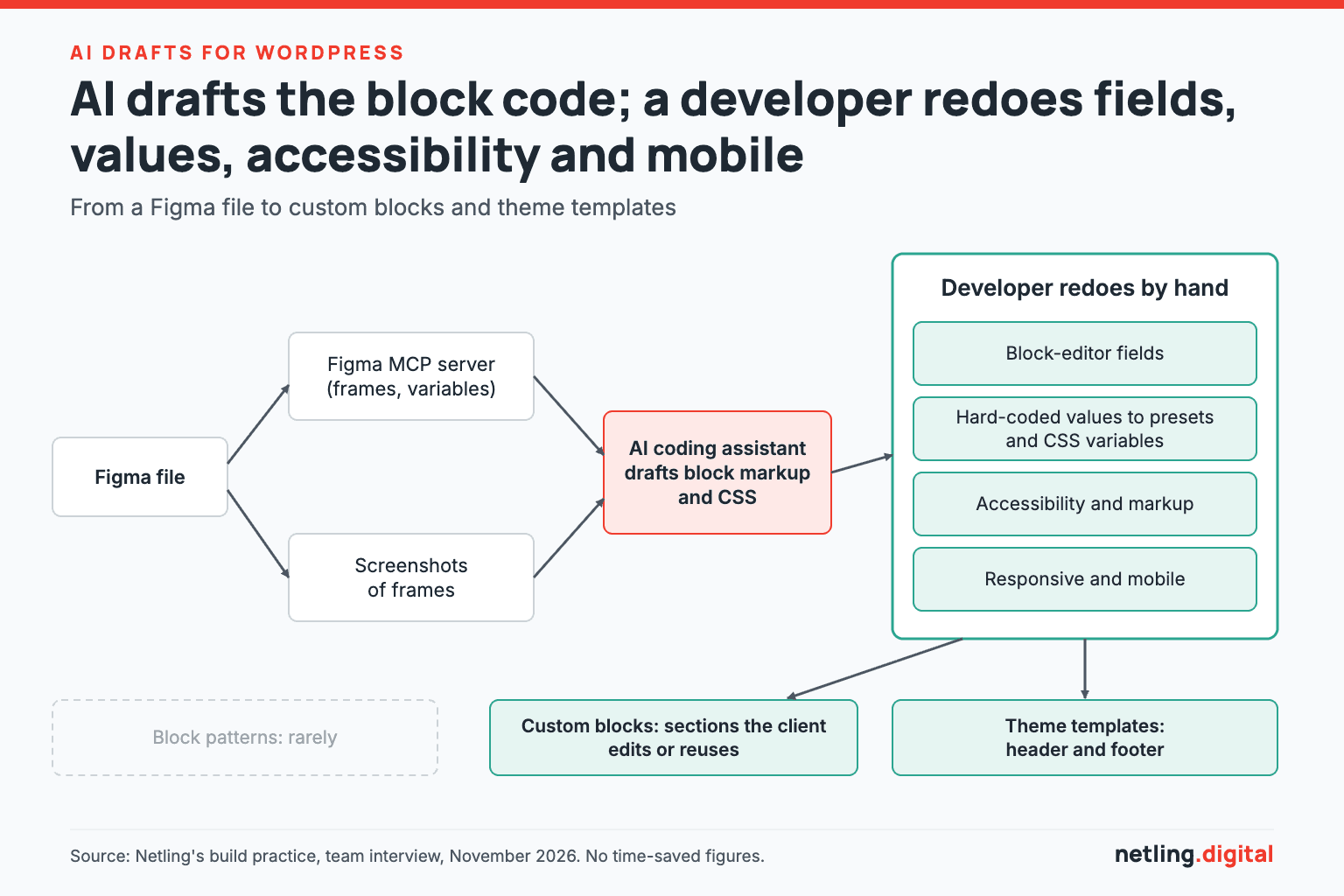
What our developers redo by hand falls into four areas:
- Block-editor fields: attributes, controls, InnerBlocks and sensible defaults, so the client can edit the block.
- Hard-coded values: one-off pixel sizes, colours and spacing, replaced with the theme's presets and CSS variables.
- Accessibility and markup: wrong heading levels, missing form labels, div soup and missing focus styles.
- Responsive layouts: drafts made from desktop frames that don't adapt to tablets and phones.
Skip any of them and it can show after launch: a block the client can't edit, an off-design page, a failed accessibility check or a broken phone layout. The list comes from our own builds; we haven't tested any AI tool or converter against it. You can put the same four areas to any builder whose route starts with generated code, converters included.
An AI assistant can only draft what the file shows. Behaviour nobody drew, such as what a form sends or how a filter narrows results, has to come from written notes (group A of the checklist below). Our post on spec-driven development explains why written specs matter more when AI drafts the code.
Ask: if AI or a converter drafts the code, what does a developer review by hand before delivery?
The Figma to WordPress build-ready checklist: what changes a quote
Three gaps in a file have changed our quotes or timelines after work started:
- No mobile designs: only desktop frames were drawn, so we worked mobile out ourselves or waited, and both added time.
- Missing states or pages: states, inner page templates or the 404 turned up undesigned after quoting.
- Unspecified functionality: forms, filters, search, integrations or WooCommerce behaviour drawn but never described.
After staging, builds come back to us mostly because the client changed content, asked for sections nobody designed, or mobile was never drawn. The checklist covers the last two. It can't catch content changes, so agree with your client which content is final before the build starts.
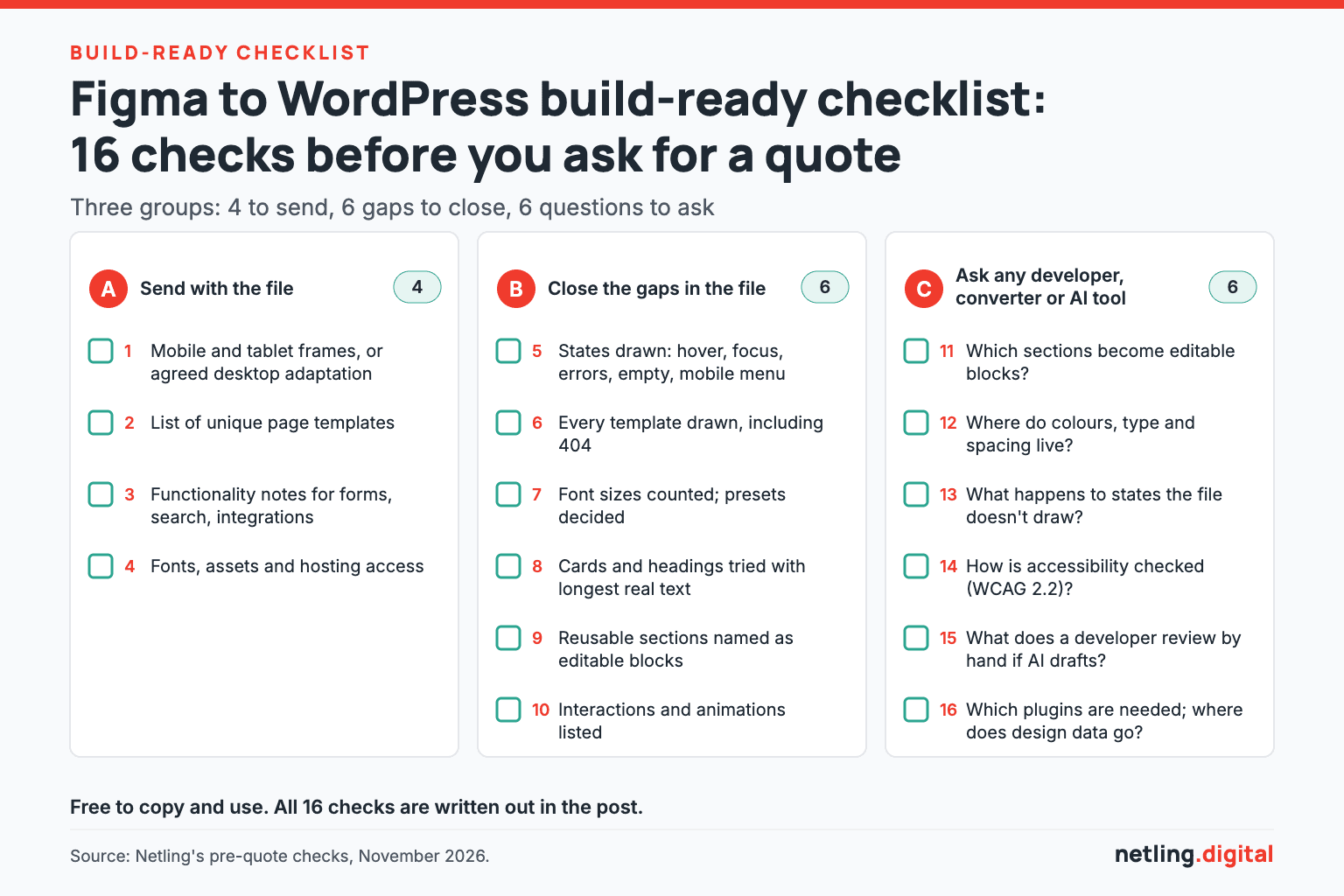
Group A: send with the file (4)
Before we quote, we ask for these four things:
- Mobile and tablet frames, or written agreement that the developer adapts the desktop design.
- A list of unique page templates: home, inner page, blog, contact and 404.
- Functionality notes: what each form, search, filter, integration or WooCommerce feature must do.
- Fonts, assets and hosting details.
Group B: close the gaps in the file (6)
- States drawn: hover, focus, form errors, empty results and the mobile menu.
- Every template drawn, including inner pages and the 404.
- Font sizes counted: if there are more than a handful, decide the presets now.
- Cards and headings tried with the longest real text.
- Sections the client will add or reuse named, so they become editable blocks.
- Prototype interactions and animations listed.
Group C: ask any developer, converter or AI tool (6)
- Which sections become editable blocks, and which stay fixed in theme templates?
- Where will colours, type sizes and spacing live, and how many presets will there be?
- What will you do about states and screens the file doesn't draw?
- How do you check accessibility: heading order, form labels, visible focus and 24 by 24 px targets?
- If AI or a converter drafts the code, what does a developer review by hand before delivery?
- Which plugins does the result need to run, and where does our design data go?
Group C works on any builder, including us. How to choose a development company covers the rest of the vetting when you compare firms.
How to choose between a converter, AI, a page builder and a hand build
The longer a client edits a site, the more the editing set-up decides whether the layout survives, as the page-builder site we rebuilt showed.
Pick the route by who edits the site after launch, and for how long:
- Converter: a page you need fast that nobody will edit for long, such as a pitch prototype or a short campaign.
- Page-builder rebuild: a client who wants to move sections around visually and accepts the builder plugin it runs on.
- AI draft: only with a developer who reviews and finishes it.
- Hand-built theme: a client who will edit content for years without breaking the layout.
When a hand-built theme is the wrong choice
We have never turned a Figma build away, so the list below is advice we would give. We'd suggest a converter, a page builder or no build at all for:
- A clickable prototype for a pitch: Figma's own prototype may be enough until the client signs.
- A campaign page that lives for weeks: it won't be edited long enough to repay custom blocks.
- A budget below a per-template fixed quote: a converter such as Yotako, priced per design, is the cheaper start.
- A client who wants to drag sections around: a page builder gives them that, and custom blocks keep the layout fixed on purpose.
If the design isn't approved yet, wait rather than switch route. We build only from an approved file, so settle the design before you ask anyone for a quote.
Frequently asked questions
How do you convert Figma to WordPress?
There's no export button, so a plugin, an AI assistant or a person rebuilds your frames as WordPress templates, editable sections and shared styles. The route you pick decides who can edit the site later. Before anyone quotes, check that the file has mobile frames, drawn states and notes on what each form and filter must do.
Is there a Figma to WordPress plugin?
Yes, and you can use one without coding. Pick it by the editor the client will end up in. UiChemy targets Elementor, Bricks or Gutenberg, Yotako generates a whole theme, and Figma to WordPress Block gives code to paste into the block editor. Kinsta calls plugin conversions "not 1:1", so plan time to fix styles and mobile layouts.
Can you convert Figma designs to Gutenberg blocks?
Yes, in two ways. A converter can output blocks from a third-party plugin such as Spectra or Kadence Blocks. Or a developer builds custom blocks registered with block.json, which AI can help draft. Third-party blocks keep that plugin installed for as long as the site runs, whereas custom blocks ship inside your own theme.
How much does it cost to convert Figma to WordPress?
Of the firms we checked, only Seahawk publishes price bands: $499–699 for a basic single-page build and $999–2,999 for 10–15 pages. A converter such as Yotako starts at $19.9 per design. Agencies that quote per unique template, as we do, price the number of templates plus the gaps the file leaves.
Can AI convert a Figma design to WordPress?
It can draft one. Figma's MCP server gives an AI coding agent the file's components, variables and layout, and the agent writes code from them. Turning that draft into a theme a client can safely edit, with working editor fields and mobile layouts, is still a developer's job.
Your next three steps with the file
- Run the build-ready checklist on the file and close the gaps in group B before you send it anywhere.
- Put the decision rule above to how your client will edit the site.
- Send the file with the group A items to whoever builds it, whether that is your own developer, a freelancer or a white-label partner, and ask them the group C questions.
If you want us to build it, send the approved file to our WordPress developers for a fixed price from $200 per unique template, with a minimum project of $1,000 for five pages. A typical five-page site takes two to three weeks, with two months of free support after launch. We work under NDA with agencies, and on white-label work the repositories and IP belong to the agency. Agencies that want the build invisible to their client can try us on one job through our white-label service, or send us a project briefing.
More Articles
Continue reading from our engineering blog.
How to Scope a Software Project: 8 Free Templates for Agencies
Six steps take a founder's SaaS or web app enquiry to a confirmed brief and a range estimate, then one decision: proposal, paid discovery or pass. With a discovery trigger that works at any hourly rate and 8 free, ungated templates.

Stop Saying "No" to Complex Projects: How White-Label Partners Empower Your Sales Team to Win Bigger
Stop turning away high-revenue projects. Discover how a white-label AI-native engineering partner transforms your agency's sales capacity and allows you to compete for complex technical contracts with zero hiring risk.

Best Web Design and Development Blogs to Follow: 33 Checked
33 web design and development blogs and newsletters, each with an editorial post (not sponsored or deals) in the 90 days to 18 Nov 2026, dated from its own feed or home page. Plus what became of the 21 blogs on our 2018 list.